VEWGN
Multi-View Video Recorder
Introduction
VEWiGN is a multi-view video recorder realized using only the devices you have at hand. It supports your performance improvement in all scenes where you want to analyze movements from multiple angles, such as sports form checks, dance practice, and rehabilitation records.


1. No Special Equipment Required
No expensive cameras or dedicated transmitters are needed. Just prepare one or two smartphones or tablets you usually use, and you can start multi-angle recording and analysis immediately.
Works with any combination of iOS / Android.
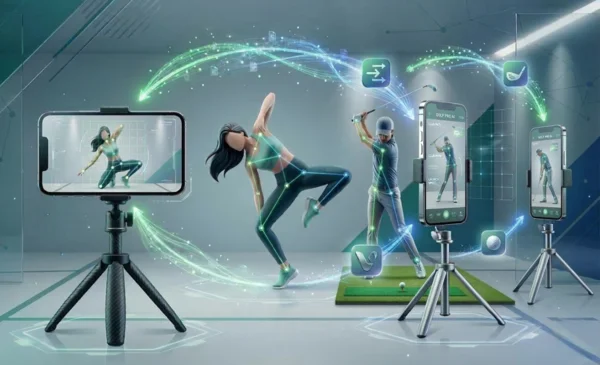
Your devices become professional-grade analysis equipment
2. Record Without Worrying About Data Costs
Are you worried about data consumption when sending and receiving large video data? VEWiGN adopts a technology called P2P (Peer-to-Peer).
This is a mechanism where terminals exchange data directly. By connecting two devices to the same Wi-Fi router (access point), you can share high-quality video without using much of the external internet line and without worrying about packet limits.
Minimal data communication occurs for initial connection establishment (signaling), but the video data itself during recording is sent and received directly within the local network.
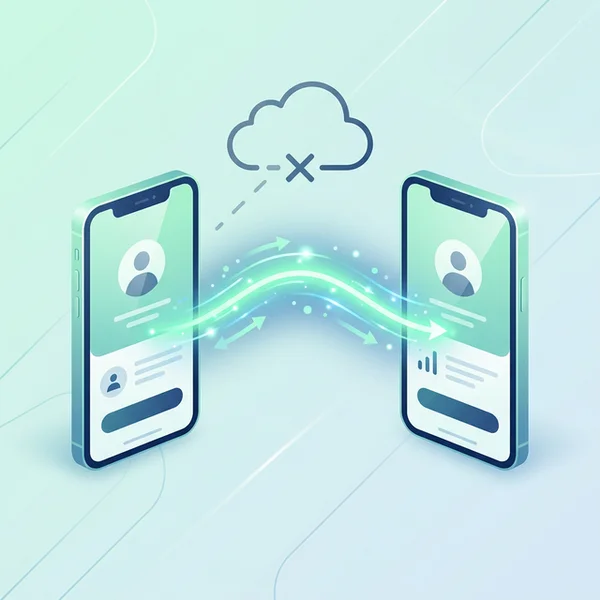
Data arrives directly, making it fast and secure
Quick Start
Pairing
Connect two devices in the Recording Room and decide on the camera angles.
Start Recording
Start recording. Video from both devices is automatically synchronized and saved on the host device.
Form Analysis
Check your form with slow-motion playback or AI pose detection, and write lines or notes for analysis.
SNS Sharing
Export analysis data as a video. Use it for uploading to SNS or sharing.
Home Screen
This is the main screen displayed when you launch the app. You can access two major functions and settings.
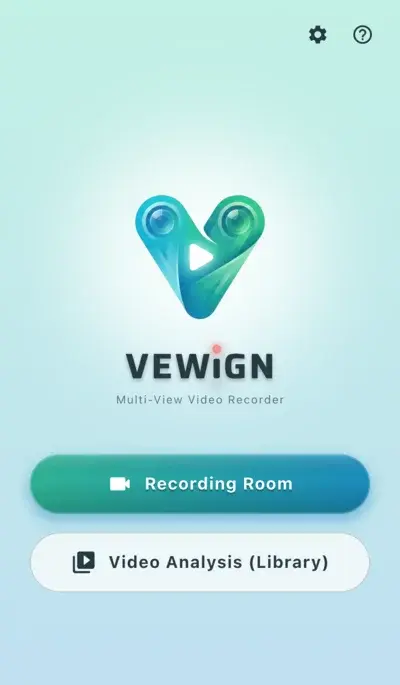
Simple and intuitive main menu
-
videocam Recording RoomStart a new recording session. Recording with one device or multi-angle shooting with two devices is possible.
-
video_library Video Analysis (Library)Manage recorded videos, import external videos, and perform detailed analysis (playback, drawing, AI detection).
-
settings SettingsConfigure image quality, remote control settings, and check app information.
-
help HelpDisplay this user manual.
Recording Room
The main feature where you can photograph sports or movements by combining one or two devices.
Basic Operations
-
radio_button_checked Record ButtonStarts and stops shooting.
-
mic Mic ON/OFFToggles voice recording on/off (cannot be changed during recording).
-
cameraswitch Switch CameraSwitches between front and rear cameras.
-
av_timer MetronomeShoot according to the specified tempo. In environments where sound is hard to hear, you can check the rhythm with visual effects.
-
flip MirroringFlips the video horizontally. Useful for checking during selfies.
-
video_library Library (Video Analysis)If you want to check a video immediately after shooting or check a previously shot video, you can access the video library from the icon at the top of the screen without returning to the home screen.
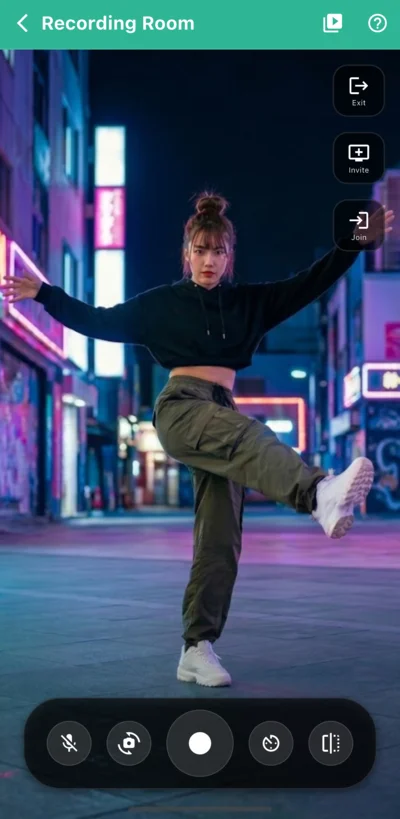
Shooting screen with one device
lightbulbOther Useful Operations
-
Pinch Operation (Zoom/Pan) pinchYou can zoom the video by pinching with two fingers on the preview image. While zoomed, you can freely move the display position (pan) by dragging with one finger.This operation applies only to the preview display, and the range of the recorded video itself is not changed.
-
Remote Shutter settings_remoteUsing connectable devices you already have, such as a Bluetooth remote, mouse, or keyboard, you can start and stop recording from a distance. Very useful for self-shooting using a tripod or operating the secondary (guest) device from a distance.To use, configuration in 'Settings > Recording Room Settings > Remote Shutter' is required.
-
Visual Recording Effects light_modeCan display effects that visually emphasize that recording is in progress (e.g., red frame blinking on the screen border). Helps to see at a glance if recording has started normally, even during self-shooting from a distant location.To use, configuration in 'Settings > Recording Room Settings > Visual Recording Effects' is required.
Multi-Angle Shooting with Two Linked Devices
Connect two devices to check both camera images side-by-side while recording simultaneously.
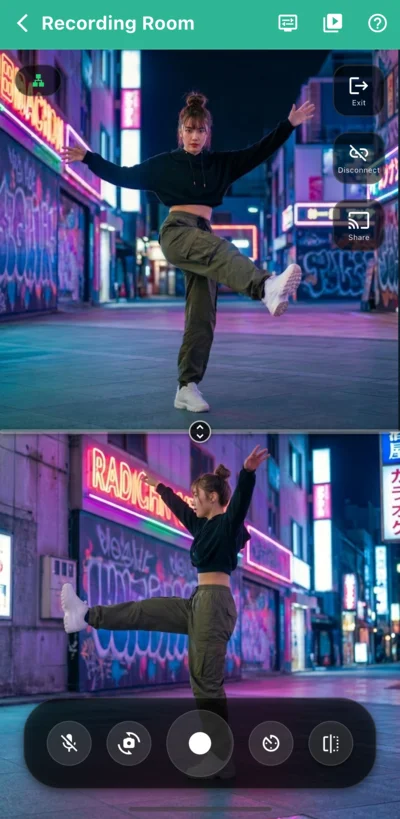
Multi-angle shooting
On the first device (host), tap [Invite]. A QR code will be displayed on the screen, waiting for the guest device to connect.
On the second device (guest), tap [Join], then read the QR code displayed on the host or select the target device from 'Registered Hosts'.
After connecting, check that the network indicator at the top left of the screen lights up 'green', indicating a stable communication state.
Press the record button to start synchronized recording from both cameras. When you stop recording, both videos are saved simultaneously.
lightbulb Useful Features
-
Dual View Settings display_settingsYou can switch between 'Split Mode' (sharing the screen top/bottom or left/right) and 'PiP Mode' (displaying one as a small overlay) to suit the situation.
-
Share Host Video castYou can display the host's camera image on the guest's screen in real-time. Useful for collaborative angle checking from distant locations.
-
Register Frequently Used Hosts starIf you register hosts you usually use, you can skip reading the QR code next time and easily reconnect just by selecting from the list.Registering a host is done in 'Settings > Recording Room Settings > Dual-Camera Recording'.
Please Pay Attention to Connection State
expand_circle_down Check Reason and Technical Details
If the network indicator at the top left of the screen is a yellow earth icon, it's highly likely that P2P connection is being made via an internet line instead of direct communication within Wi-Fi. This state can consume a large amount of data traffic (throttling) for transferring video data, so please [Disconnect] immediately to avoid hitting your data cap. Then, verify that both devices are on the same Wi-Fi and can communicate with each other on the local network.
Video Library
A screen for managing and selecting recorded videos or videos imported from outside. Recorded videos are displayed as 'Video Sets' in card format, and you can check the content with 1 or 2 screen thumbnails.
Basic Operations
-
add Create NewFrom the [+] button at the bottom right of the screen, you can import existing video files (MP4, MOV, etc.) into the library.
-
edit EditChange titles or re-select videos.
-
delete_forever DeleteDelete sets you no longer need. Long-pressing a card allows you to select multiple sets and delete them all at once.
-
sort SortSort video sets by date (newest/oldest) or title from the icon at the top right of the screen.
-
cloud_upload Export DataExport selected video sets in VEWiGN proprietary format (ZIP). Used for migration to other devices or backups.
-
cloud_download Import DataImport data backed up in VEWiGN proprietary format (ZIP) from the icon at the top right of the screen.
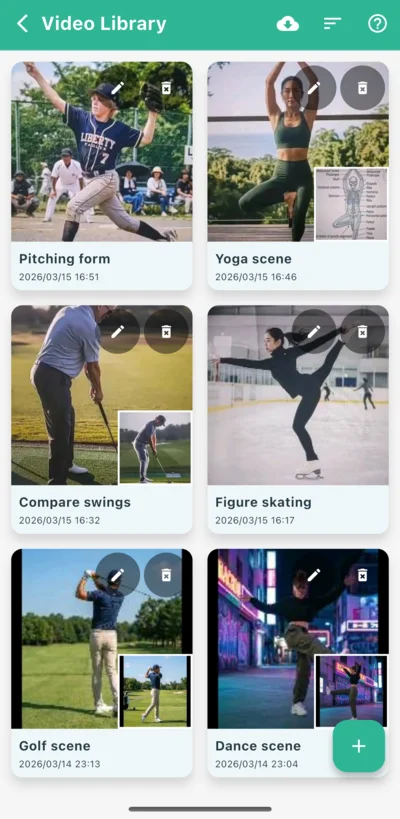
List display of video sets
lightbulb Data That Can Be Imported into Video Sets
-
Select from Gallery photo_librarySelect videos from the device's standard photo album.
-
Select from Files folderSelect videos from the 'Files' app or cloud storage.
-
Pick from App video_libraryRe-use video footage from other video sets already in the library to create new ones.
Video Analysis
A screen for checking recorded videos frame-by-frame or analyzing in detail using drawing tools and AI.
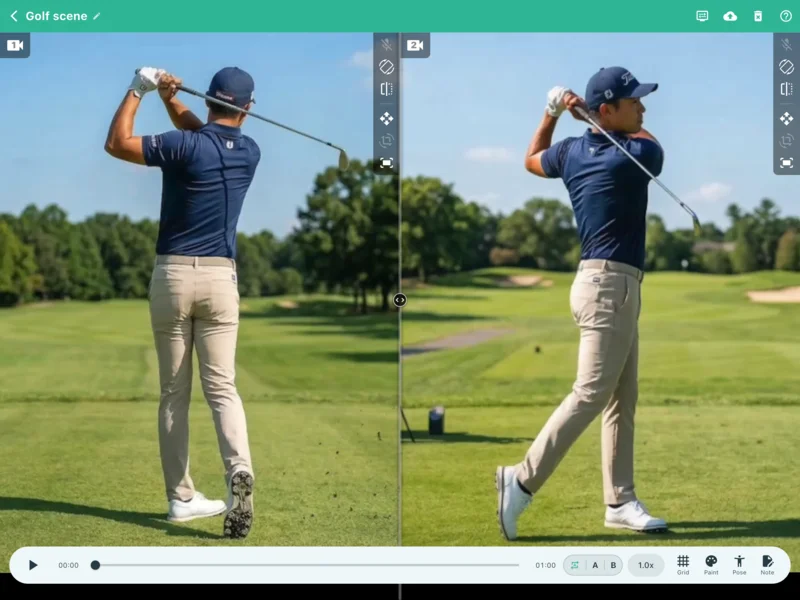
Multi-functional video analysis
Basic Operations
-
play_arrow Simple PlaybackUse the control bar at the bottom of the screen to play, pause, and move the playback position using the seek bar. When there are two videos, they are always controlled in synchronization. Also, if video 1 and video 2 have different lengths, the overall playable range follows the length of 'Video 1'.
-
repeat Loop (AB Repeat)Repeatedly play a specific section (from point A to point B) to check intensely.
-
speed Playback SpeedAdjust from 0.25x slow motion to 2.0x fast, depending on the situation.
lightbulb Other Useful Operations
-
Dual View Settings display_settingsSwitch between top/bottom, left/right split display and PiP mode overlay to suit the analysis scene. During PiP display, sub-screen transparency can be adjusted, allowing you to overlay two images and compare subtle differences in form.
-
Mute Audio volume_offMutes the audio of the video being analyzed.The default ON/OFF state can be changed in 'Settings > Video Player Settings > Audio Output'.If a video without audio data is loaded, the mic_off icon will be displayed.
-
Correct Video Orientation mobile_rotateIf the loaded video is sideways or upside down, you can rotate it in 90-degree units to the correct orientation.
-
Mirror View flipFlips the image horizontally. Useful for correcting dominant hand or comparing with model videos.
-
Video Zoom/Pan drag_panZooming and moving (panning) the image is possible with intuitive finger operations. Operation can be toggled ON/OFF to prevent unintended manipulation from accidental taps.
-
Video Angle Adjustment crop_rotateAlong with zoom/pan, you can finely adjust the video angle. Corrects subtle tilts to improve analysis accuracy. This can also be toggled ON/OFF to prevent unintended manipulation.
-
Reset Video fit_screenResets zoom, pan, and angle adjustment states to default.
High-Precision Playback Control
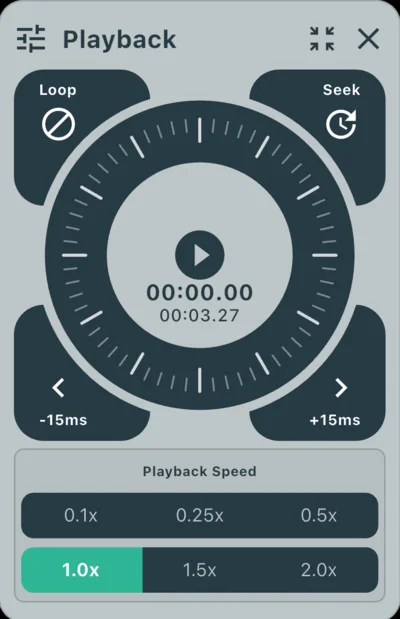
Operation by jog dial
-
laps Jog DialBy tracing the circular controller, you can intuitively perform frame-by-frame forward or backward movement.
-
sync_alt Offset AdjustmentYou can shift two videos in millisecond units to perfectly synchronize the moment of impact or start timing.Switch between 'Seek' (moving playback position) and 'Offset' modes using the button at the top right of the jog dial.Data recorded with this app saves video and audio independently. If there's a discrepancy in audio data, fine adjustment of audio timing can also be performed with the offset adjustment tool.
Advanced Grid Drawing
Displays equally spaced auxiliary lines on the screen. Used for fixed positioning or horizontal/vertical line checks. Position and angle can be finely adjusted according to analysis goals.
-
grid_4x4 Display Mode and Density AdjustmentIn addition to simple 2D grids, switching to a 3-Dimensional Space Grid is possible. The density of reference lines can also be changed to suit the application.
-
camera_enhance Position, Wall, and Camera Adjustment (3D only)In 3D mode, the grid's position, surrounding walls (surfaces), and camera perspective angle can be finely adjusted to the video.Each adjustment parameter unit is based on relative values where the grid cell width/height is '1.0'.
-
cleaning_services Grid Eraser (3D only)Specific parts of the grid can be erased by tracing. Only parts that overlap with the subject and are hard to see can be pinpointed and removed, so it doesn't interfere with analysis.
-
visibility Toggle VisibilityToggle the entire grid display ON/OFF with a single tap while maintaining settings.
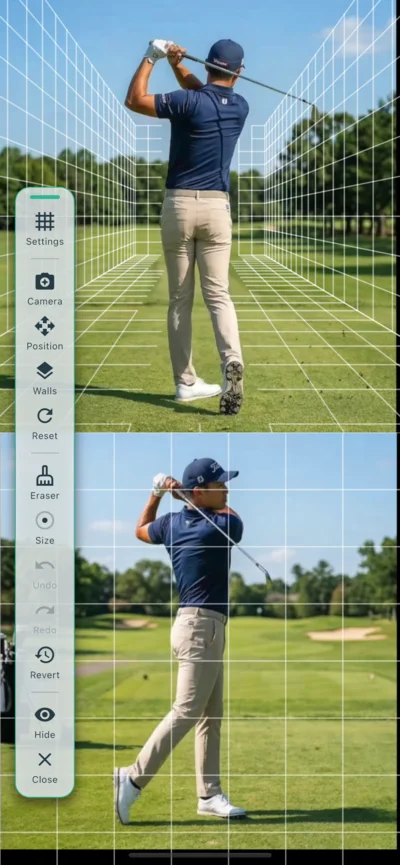
Advanced grid drawing
Versatile Paint Tools
Lines and shapes can be drawn directly on the video to visualize the form's axis or movement trajectory. High-precision analysis is supported through various tools and use of multiple colors.
-
edit Abundant Drawing ToolsStraight lines, arrows, circles, rectangles, parallel lines, and a pen tool for free-form writing can be placed intuitively.
-
architecture Measurement and Emphasis ToolsEquipped with an 'Angle' tool to measure the angle between two lines, 'Focus' to highlight areas of interest, and 'Text' tools to write down important points.
-
palette Color VariationsBy using multiple colors (color palette), differences between comparison targets (e.g., professional vs. self, past self vs. current) can be visually clarified.
-
undo Undo & RedoUndo/Redo for drawing is of course supported, along with an eraser to remove specific parts and bulk clearing of unneeded shapes.
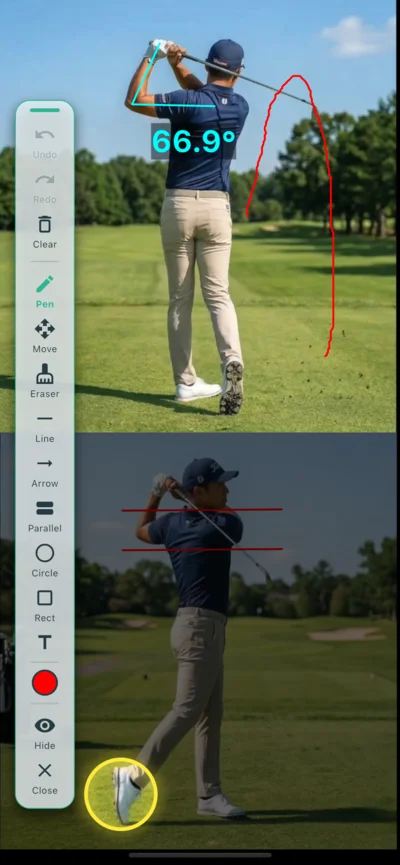
Versatile paint tools
Pose (AI Skeleton Detection)
AI automatically tracks person's joints in the video and displays a skeleton model. Form breakdowns or movement mechanisms can be visualized as objective data.
-
accessibility_new AI Automatic Detection and VisualizationAI analysis starts with a single button. Shoulder, elbow, hip, knee, and other major joints are automatically detected, and movements are converted to a skeleton model in real-time.
-
layers Three Display ModesSwitch between 'Overlay' (layering on image), 'Skeleton only', and 'Video only' modes. Convenient when you want to check the essence of the movement.
-
tune Afterimage/Display CustomizationThe length and opacity of 'afterimages', which allow checking of movement trajectories, can be adjusted. Specific joints or lines can also be set to show/hide individually.
-
palette Color and Detailed SettingsSkeleton colors and line thickness can be freely changed. Customizable to an easy-to-see color scheme according to the background video colors.
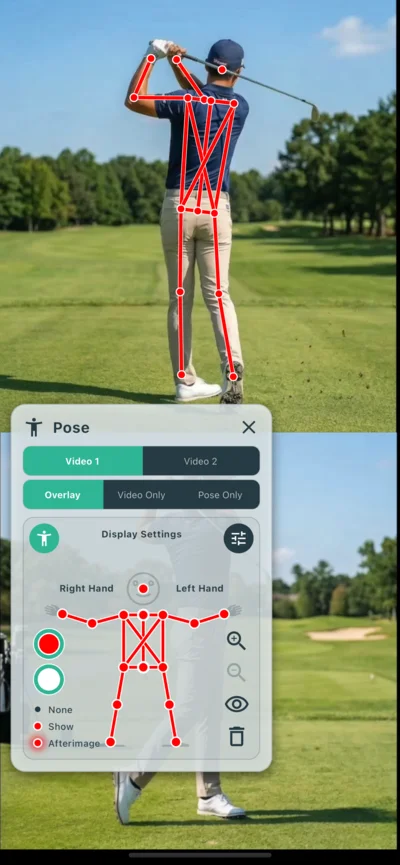
Settings for AI skeleton detection (Pose)
tune Effect Settings
-
Afterimage Duration historySets the time to display the skeleton from past frames to the present as a 'trajectory'. Effective for capturing movement arcs and form changes visually.
-
Afterimage Density opacityAdjusts the density of the afterimage. Darkening makes the flow of movement clear, while lightening helps focus on the current posture and image overlay.
-
Smoothing auto_awesomeSuppresses small fluctuations that occur per frame unique to AI analysis, and adjusts for smoother skeleton movement.
-
Person Filter person_searchAdjusts to detect only the central person if skeletons are detected other than the target person or if background noise appears.
Other Features
-
edit_document NotePoints noticed during analysis or instruction content can be recorded as text. Input content is automatically saved for each video set.
-
cloud_upload Export (MP4 Writing)To allow playback in environments other than this app, you can export as a single video file including grid, paint, and pose overlays. You can choose which items to include at export time. Ideal for SNS posting and sharing.
Settings
Customize app operation, image quality, external device linkage, appearance, etc. Settings are divided into three categories: 'Recording Room', 'Video Player', and 'Application Information'.
Recording Room Settings
Configure operations and image quality related to shooting.
-
settings_suggest Video EncoderSpecify the video compression format. 'Auto' is recommended, but if recording is unstable on a specific device, manual switching to 'Software' or 'Hardware' may improve it.
-
high_quality Image QualitySelect the optimal image quality preset for the shooting scene. Options like 'Action/Form Check' for high-speed movements or 'High Quality' for high-definition recording are available.
-
mic Enable Mic by DefaultSets whether the microphone is ON or OFF by default when entering the Recording Room.
-
videocam Default CameraSelect the default camera (front or rear) to use when entering the room.
-
settings_remote Remote ShutterAssign Bluetooth remote or mouse button inputs to start/stop recording operations. Features a learning function to automatically recognize keycode differences for each OS and device.
-
light_mode Visual Recording EffectsToggle visual effects like a red frame blinking on the screen border during recording. Helps to easily check recording state from distant self-shooting.
-
phonelink_setup Dual-Camera RecordingPerform pairing settings for devices performing simultaneous recording. Registered devices can be connected simply by selecting from the list next time without reading a QR code.
Video Player Settings
Customize playback/analysis behavior.
-
volume_up Audio OutputInitial audio setting when opening the analysis screen. Choose from 'Always start OFF', 'Always start ON', or 'Maintain previous state for each video'.
-
vibration Jog Dial FeedbackEnables vibration feedback and click sounds when using the jog dial.
Application Information
Configure overall app design and check information.
-
language LocalizationYou can select the language used for display in the app. By default, the language is automatically selected according to the device's system settings, but if the app does not support the language, it will be displayed in English.
-
palette Color ThemeChange the app's color scheme (skin). Choose from dark mode or sport-specific color palettes to make the app look just the way you like.
-
info Version / LicenseCheck the currently installed app version and refer to license information for open-source libraries used in this app.
diamond About the Pro Plan
VEWiGN offers most features, such as multi-angle recording, AI analysis, and versatile drawing tools, for free. For those who need more video analysis or permanent data management, we offer the 'Pro Plan' that unlocks the following limitations.
| Feature/Limit | Free Plan | Pro Plan |
|---|---|---|
| Recording Time Limit | 1 min / session | Unlimited |
| Library Storage Limit | Up to 3 sets | Unlimited |
| Backup Feature (ZIP Export/Import) | Not Available | Available |
| Watermark on Video (VEWiGN logo) | Present | None |
By upgrading to the Pro Plan, all these constraints are removed, allowing use as a professional-grade tool for sports instruction beyond personal practice. Upgrading can be done from the banner at the top of the settings screen.
Frequently Asked Questions (FAQ)
A collection of common questions and answers about VEWiGN usage and features.
p2p
Is a separate dedicated device like a Wi-Fi router needed to connect two devices?
public
Will using it outside consume a large amount of data (traffic)?
wifi_off
Both devices are connected to the same Wi-Fi, but they cannot link with each other in the Recording Room.
report_problem
The app crashes during recording or saving fails.
settings_remote
The remote shutter doesn't respond well.
sync_alt
I want to sync the timing of two videos.
cloud_sync
Can I transfer my data when switching to a new device?
devices_other
Can iPhone and Android be used mixed?
accessibility_new
It takes time to create AI pose data.
cloud_upload
MP4 export takes time.
security
Please tell me about the permissions required by the app and data handling.
The app uses the following permissions necessary for operation:
- Camera/Mic: Used for video and audio recording.
- Photos/Library: Used for saving recorded videos and reading external videos.
- Network (Wi-Fi/Mobile Data): Used for connection information exchange and relay communication when linking two devices. iOS also uses 'Local Network' permission for P2P communication.
- Bluetooth (Android only): Necessary for using Bluetooth equipment with remote shutter. On iOS, Bluetooth equipment can be used as a remote without additional permission.
Captured video and audio data are used only for display, editing, saving within the app, and export operations by the user themself.
It is never sent to external servers including the developer, nor used for purposes other than app functional provision.